You have all seen them but if you've ever wanted to create one yourself, like this one I made the other, the following easy step by step instructions for Canva.com It's free to use, provided you don't purchase their 'at cost' desings and use it for something simple like a MEME. I also use this online site to create my daily YouTube thumbnails (let me know if you'd like to see how that's done).
Have you ever wanted to share a video but only a part of it? There is an option to Start at a specific point, especially helpful if the video is packed with a variety of topics (like my vlogs are). Sample shown from yesterday's vlog that had at least 4 different topics covered including a share of what's inside the box of the new Vidal Sassoon 'Professional' color
Today the Inbox option no longer appears in the same place on YouTube, thanks for the change with no notice. Go to your Video Manager selection once logged into your account.
Before 1-7-2014 the left hand navigator has a direct Inbox link option but not today. To find it, click on Community option.
Once you do that, you can now see several new options including Inbox, I will show you each (that are live) below
Community Settings allow you to create some filters to prevent certain content from even posting on your videos. For example, you can add key words that you would NEVER want to appear - hate speech for one.
These are additional options for the Default Settings.
When you click on the Inbox the view is still the same but as you can see to get to it there are a couple of additional steps.
Comments section shows Published, Pending (if you set them to be approved) and Marked as Spam which I would recommend you check, most of mine were not spam. There does not appear to be an option to approve multiple comments at the same time so when you scroll over the video name you can go directly to the video to approve it there. The bold comment that moderation and other features coming soon makes me think that this option will be available at some point.
Here is another view of several comments I need to approve.
In addition, there is an Insight option that keeps producing a code error so I could not share what it looks like, yet. I will check back till it's live and add the information here.
The FANS Section
Now this is a cool interactive spot I encourage everyone to check out
Here you can see the viewers who have been most engaged in your channel. You can Sort by Engagement, Subscribers, Oldest, Newest and View by Google+ Circles.
I will continue to poke around these changed and add anything I discover here. Just wanted to give everyone a heads up on the relocated and barred Inbox.
Around 9:30 pm EST 11-06-13 YouTube changed/upgraded the comments interaction
The first time you try to leave a comment on a video (once logged in) you will see the pop-up message above
A new check box option to also post your comment on Google+ is now live
In addition, each comment you leave can be disabled from being replied to or reshared
Leaving the defaulted box checked will post your comment either Publicly or
to a Selection of Existing Groups which display in the drop down
A nice improvement is that you can now Edit your posted comments, Remove the comment entirely or Disable Replies Initially, once your video goes live, an automated comment is left below your video with a 'Shared This via Google+'. This comment can be Edited, Removed or Replies Disabled
Comments on videos not posted by you, there are two options - Report abuse or Mute (although I have not tried this personally, my guess is that it removes the comment from view)
Additional Changes:
URL Links can be posted in the comments, this is the promised replacement to Video Responses that were eliminated in September 2013
If you have your YouTube account set to be notified via email when comments are left on your video, now that email will arrive from a Google+ address rather than YouTube
Internet Explorer users might not be able to see comments or see the comments but not be able to reply. Apparently Google Chrome works perfectly, what a shocker!
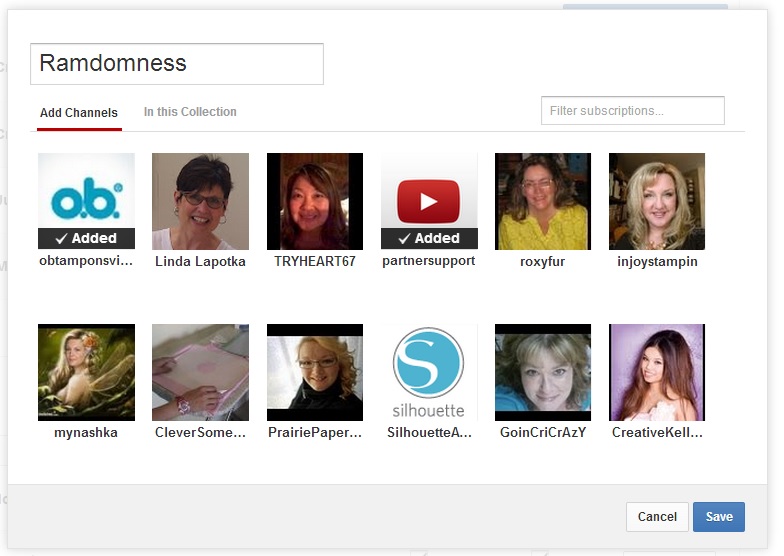
To create a collection of like channels, once logged into your YouTube account click on My Subscriptions and then Manage Subscriptions. Click on Create new Collection button
Name the collection and click once on the channels you'd like to add to that collection. Once done adding channels, click Save.
As you can see, each added channel will display a check mark and a comment that it was Added
Now you can organize your subscriptions into collections with a similar interest - I have Crafts, Just for Fun, Music, Randomness and in the video show the Family Collection
As you can plainly see the primary difference is that in 2012 the number of views was more than triple of what this year is showing. Much of that I think has to do with the way the queue of freshly uploaded videos is displayed when you log into YouTube. I have always encouraged Subscribers to click on the Email with New Uploads selection in Manage My Subscriptions. It's a shame when content is put out only to be lost in the shuffle of more recently uploaded videos. I think the only way to level the playing field is to get email notices. Another options is to make a selection in your settings to receive daily updates of all the videos uploaded from YouTubers you subscribe to. There is a bit of a delay on this option, sometimes I notice that the videos are a day old when they are added to that email notice but even late is better than missing a video from one of your favorites all together.
Since I am being so forthright and honest, you can see that the amount earned even prior to the recent changes were not enough for me to retire but everything helps - I often use the funds to pick up new products to review because nothing is sent to me for free, it all comes out of my pocket. You can think of the earnings like a stipend, you watch, I earn and in turn I create more content for you to watch. The Circle of Life!
I get asked questions about YouTube a lot - some are technical but most are ethical/etiquette related. I am listing some of the most popular. The list might grow with time as new issues/resolutions arise. Feel free to ask or share your experience in the comments below.
Take the time to say thank you. I send a message to each subscriber to thank them for joining my channel as well as provide some of the other channels they might find useful
Take care in making videos - good lighting, minimizing background noise, music (I always opt out of using music)
Prepare - have all your necessary supplies on hand - if showing a completed project
Tutorials - make some swap outs (if you have several steps in the process, make one of each).
Provide supply lists either in your Description or add a link to a blog post. Most viewers appreciate seeing a list of what you used in a project or a link to the shop from a haul
Provide Inspirational Credit - if you see an idea that you re-interpret or recreate, please give credit to originator or who you saw it from last and if possible provide links
When doing a video, remember to ask viewers to Thumbs Up, Comment & Share. This is an integral part of Monitization - the more of each you have the higher your per view/click payment is. Don't ask me how the formula works, it's always been allusive to me. One of the few things I have yet to figure out
Be flexible - YouTube is notorious for making changes, sudden, massive, minor, tweaks, you name it. It seems as soon as you get acclimated to seeing/doing things one way, it gets changed.
Be patient - changes in subscription numbers, comments, likes/dislikes are all a part of making yourself available on YouTube. If you are not prepared for the possible outcome you can always turn off comments & likes/dislikes. I leave both open because I want the interaction - mostly good but sometimes not so good
Put time aside to respond to comments. I take an hour a day - answer direct questions first then try to respond to each comment on a particular video. This can be time consuming but I know is appreciated by people. Again - a thank you goes a long way
Be interactive - engage your views in participating - by sharing your video with their social networks, invite them to post video responses and ask direct questions
I will be adding to this list but this is a good start. If you have any questions, please feel free to ask. I am open to ideas!
New View option now available for your Subscriptions
New View option allows you to choose what you want to see
- Highlights or Everything
Once you check one of the options, it will be saved for the next
time you log into/open YouTube
Show uploads only checkbox will either show you Uploads Only when checked or when un-checked it will show all activity from your Subscriptions - Likes, Favorites, Comments as well as Uploads